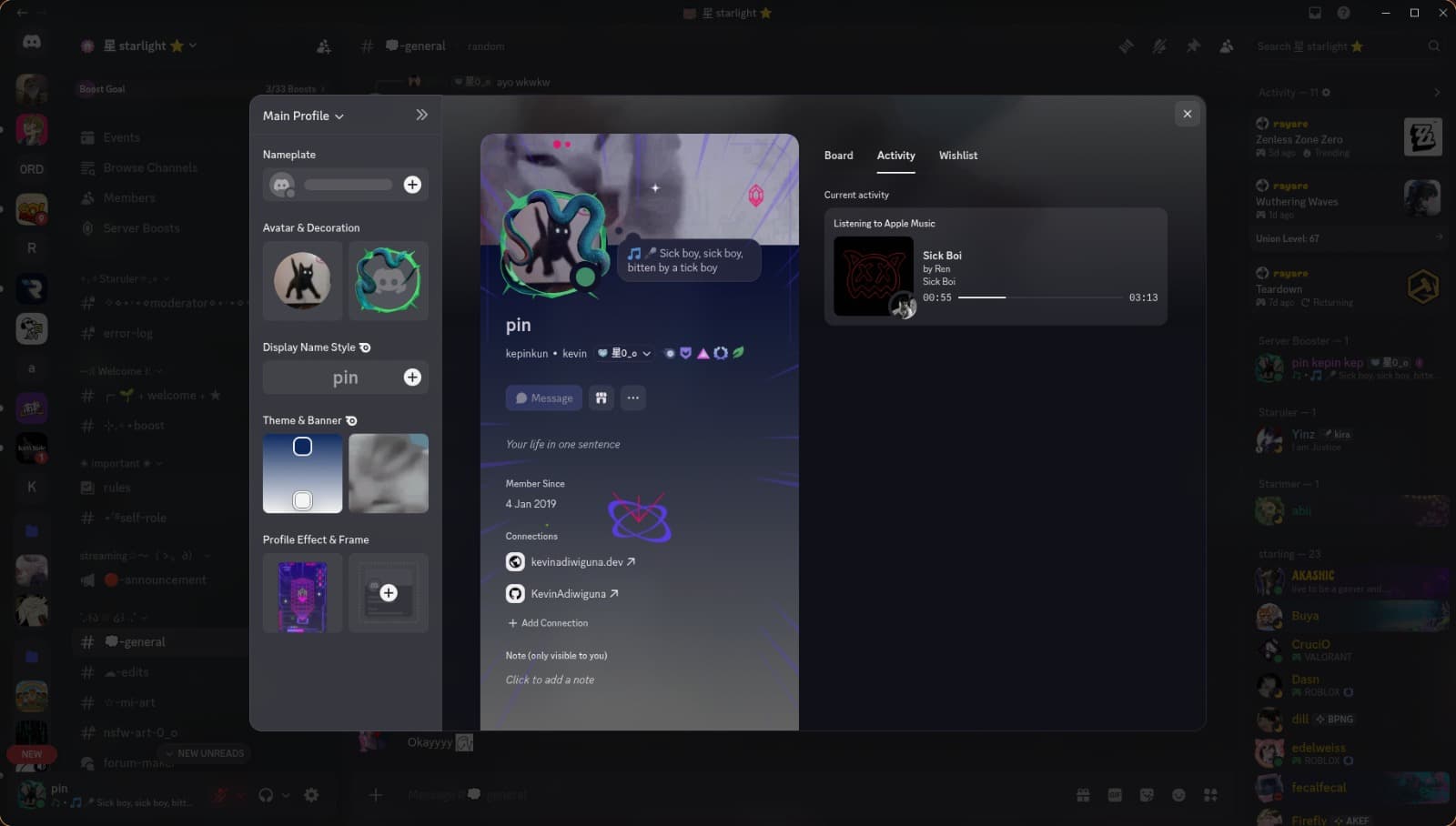
Discord Cider Status Updater
Automatically updates your Discord custom status based on the currently playing song in the Cider (Apple Music) application in real-time. It can display the song title and artist, or even the current line of lyrics if available.
Features
Real-time Status: Updates your Discord status every 3 seconds.
Lyrics Display: Shows the currently sung lyric line as your status.
Song Info: If lyrics aren't available, it defaults to
"Song Title - Artist".Auto-Pause Detection: Clears your status when music is paused or stopped.
Efficient: Caches the last status to prevent redundant API calls to Discord.
Requirements
Node.js (v16 or higher recommended)
Cider (Apple Music client) running on the same machine.
A Discord User Token.
A Cider API Token.
Installation
Clone the repository or download the source code:
git clone https://github.com/KevinAdiwiguna/discord-cider-status.git
cd discord-cider-status
Install the dependencies:
npm installConfigure the environment:
Rename the
.env.examplefile to.env.You will need to fill in the
DISCORD_USER_TOKENandCIDER_APP_TOKENvariables.
Configuration
1. Finding Your Discord User Token
Warning: Your Discord User Token is a sensitive piece of information. Do NOT share it with anyone. Giving someone your token is like giving them your account password.
Open Discord in your web browser.
Open the Developer Tools by pressing
Ctrl+Shift+I(orCmd+Option+Ion macOS).Go to the Application tab (if you don't see it, click the double arrow
>>icon on the right).In the left sidebar, expand Local Storage and select
[https://discord.com](https://discord.com).In the filter/search box, type
token.Look for the key named
"token", then copy the string value next to it (make sure to remove any surrounding quotes"if they get copied).Copy this token and paste it into the
.envfile forDISCORD_USER_TOKEN.
2. Getting the Cider API Token
The script will automatically help you get this token when you run it for the first time.
Make sure Cider is running.
When you first run the script, it will request a token from Cider.
A consent dialog will appear inside the Cider application. Click Approve.
The script will display the received token and ask if you want to save it. Type
yand press Enter.The token will be automatically saved to your
.envfile.
Usage
Once everything is installed and configured, you can start the script:
npm startOr, for development with automatic restarts on file changes:
npm run devThe terminal will show logs indicating that the updater is running and will print the status updates as they happen. To stop the script, press Ctrl+C.